


Open the Dashboard Library on a Logs stack that already receives Nginx logs and a few cards come up ticked with a green Data detected badge. Others in the same pack sit there unticked. That isn't random. Before it shows you anything, the Library checks what your stack actually holds and pre-selects only the dashboards it expects to fill.
This post walks through that check using the Nginx pack and the Filebeat nginx module, so you know what to ship, what to look at when a dashboard you wanted isn't ticked, and how to install one dashboard without taking the whole pack.
Contents
What the Library reads before you pick anything
The Dashboard Library is live on Logs stacks, with 30 ready-to-install packs for OpenSearch Dashboards. You open it from the stack card, or from Add dashboards at the end of onboarding. Each pack is matched against one or more detection profiles, and the check behind those profiles is deliberately narrow.
It lists your indices and groups them into families such as filebeat-*. For each family it looks at the two newest non-empty indices and asks two things: are the fields a pack depends on mapped so they can be aggregated, and how many events match each profile in recent data. The notice at the top of the page says it plainly: "We checked your stack's field mappings and event counts over the last 24 hours. It reads field mappings and counts only, never your log messages." What gets kept is a profile, its state and a rough count bucket. Index names and field values are not stored.
The result is a state for every dashboard, not just for the pack.
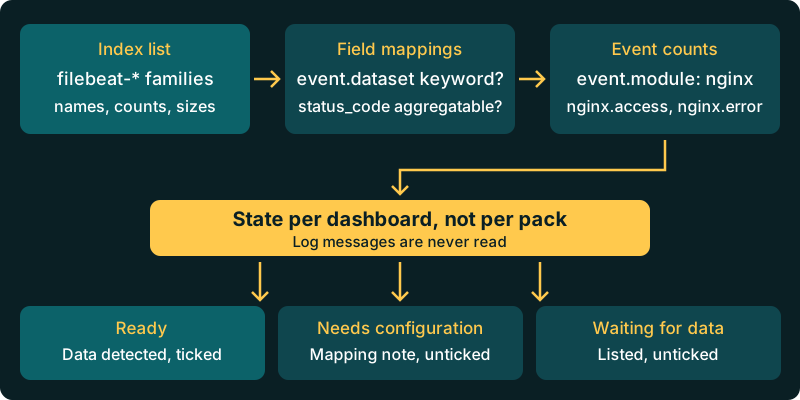
- Ready: the profile matched and the fields are usable. The pack shows Data detected and the dashboard is ticked for you.
- Needs configuration: the data is there but a field the panels group by can't be aggregated (it isn't a keyword or number and has no
.keywordsub-field). The pack still shows Data detected, with a note, and nothing is ticked. - Waiting for data: the pack matched, but not the specific events this dashboard draws from. It's listed and left unticked.
Packs that match your data move to the top, and the Detected on your stack filter hides everything else.
Ship Nginx logs the way the profile expects
The Nginx pack has six dashboards: Nginx web activity (the overview), HTTP 4xx errors, HTTP 5xx errors, high request rate clients, web request investigation and Nginx error logs. Its profile matches on event.module: nginx in filebeat-*, then counts two signals: event.dataset: nginx.access feeds the 4xx, 5xx, top clients and investigation dashboards, while event.dataset: nginx.error feeds the error logs dashboard.
Those fields come from the Filebeat nginx module, so turn it on rather than tailing the files with a plain log input:
filebeat modules enable nginxThen set both filesets in modules.d/nginx.yml:
- module: nginx
  access:
    enabled: true
    var.paths: ["/var/log/nginx/access.log*"]
  error:
    enabled: true
    var.paths: ["/var/log/nginx/error.log*"]
The output section and certificates come from your stack, as shown in the Nginx integration guide. If your access log uses a custom log_format, check in Discover that http.response.status_code is populated on access events. The 4xx and 5xx dashboards are built on it.
The most common surprise is a stack that only sends access logs. The profile matches, five dashboards come up ready, and Nginx error logs stays unticked because the nginx.error signal counts zero. Enable the error fileset, wait for events to arrive, and press Rescan stack. Rescan skips the cached result, and you can run it once a minute.
A plain log input pointed at access.log gives you the opposite problem. Your messages are in OpenSearch, but there's no event.module or event.dataset, so nothing matches and the pack isn't detected at all. You can still install it, but the panels will be empty because they filter on those same fields.
Check the fields yourself before you rescan
You can run the same two questions against your stack with the OpenSearch API. First, whether the fields are aggregatable:
GET filebeat-*/_field_caps?fields=event.dataset,http.response.status_codeYou want "aggregatable": true under a keyword or numeric type for both (a .keyword sub-field that is aggregatable also counts). Then, which datasets have arrived in the last 24 hours:
GET filebeat-*/_search
{
  "size": 0,
  "query": { "range": { "@timestamp": { "gte": "now-24h" } } },
  "aggs": {
    "datasets": { "terms": { "field": "event.dataset", "size": 20 } }
  }
}
If nginx.access and nginx.error both show up with counts, a rescan should tick all six dashboards. If the terms aggregation fails with a fielddata error, you have found your mapping problem.
When a pack says fields aren't mapped as keywords
The note "Some fields aren't mapped as keywords yet, so a few panels may stay empty" means the data matched but a field the panels group by was mapped as text with no .keyword sub-field. That can happen when events land in an index the stack's default mappings don't cover, for example one named in a custom Logstash output, so OpenSearch guessed the type from the first document.
Mappings don't change on existing indices, and on a Logit.io stack index templates and mappings are managed for you, so you can read them but not change them. Fix it where the events are shaped: make sure they go through the Filebeat nginx module and your stack's Logstash pipeline into the normal filebeat-* indices, or contact support if a field needs a different mapping. The index templates guide shows how to view the template your indices pick up. Older indices keep their text mapping, so panels fill in from the day the new index starts. If a mapping clash is already producing rejected documents, the post on field type conflicts goes through the fix in detail.
When the stack can't be checked
If detection can't run, the page shows an amber "We couldn't check your stack. Every pack is listed." notice with a Retry link. Nothing is pre-selected, but every dashboard can still be installed. The specific reasons you might see:
- The stack's OpenSearch API is switched off, or the stack has no OpenSearch API key. The Library uses that API to read mappings and counts, so it says which one is missing.
- The check ran out of time. On a stack with many index families it stops at a time limit, keeps what finished and says "We checked N of M index groups before the time limit, so rescan to check the rest."
A partial result is cached only briefly, so a rescan a minute later usually completes. Families that match a pack's expected index names are checked first, then the largest ones, so a big stack with dozens of unrelated index families is the case most likely to come back partial.
Install one dashboard, not the whole pack
Every card is a checkbox, and each pack has its own Select all. You can untick the overview and keep only HTTP 5xx errors if that's the one you'll look at during an incident. The install brings that dashboard plus the visualisations and saved searches it references, and nothing else from the pack.
The footer counts what you've picked and the button tells you how many it will install. Library dashboards install next to the ones you've built, and nothing you've built is changed. Afterwards a toast links straight to OpenSearch Dashboards, the cards show an Installed badge and a Reinstall link, and they aren't ticked again on your next visit. Installing needs permission to edit dashboards on the stack, so a user without that permission can browse the Library but not install from it.
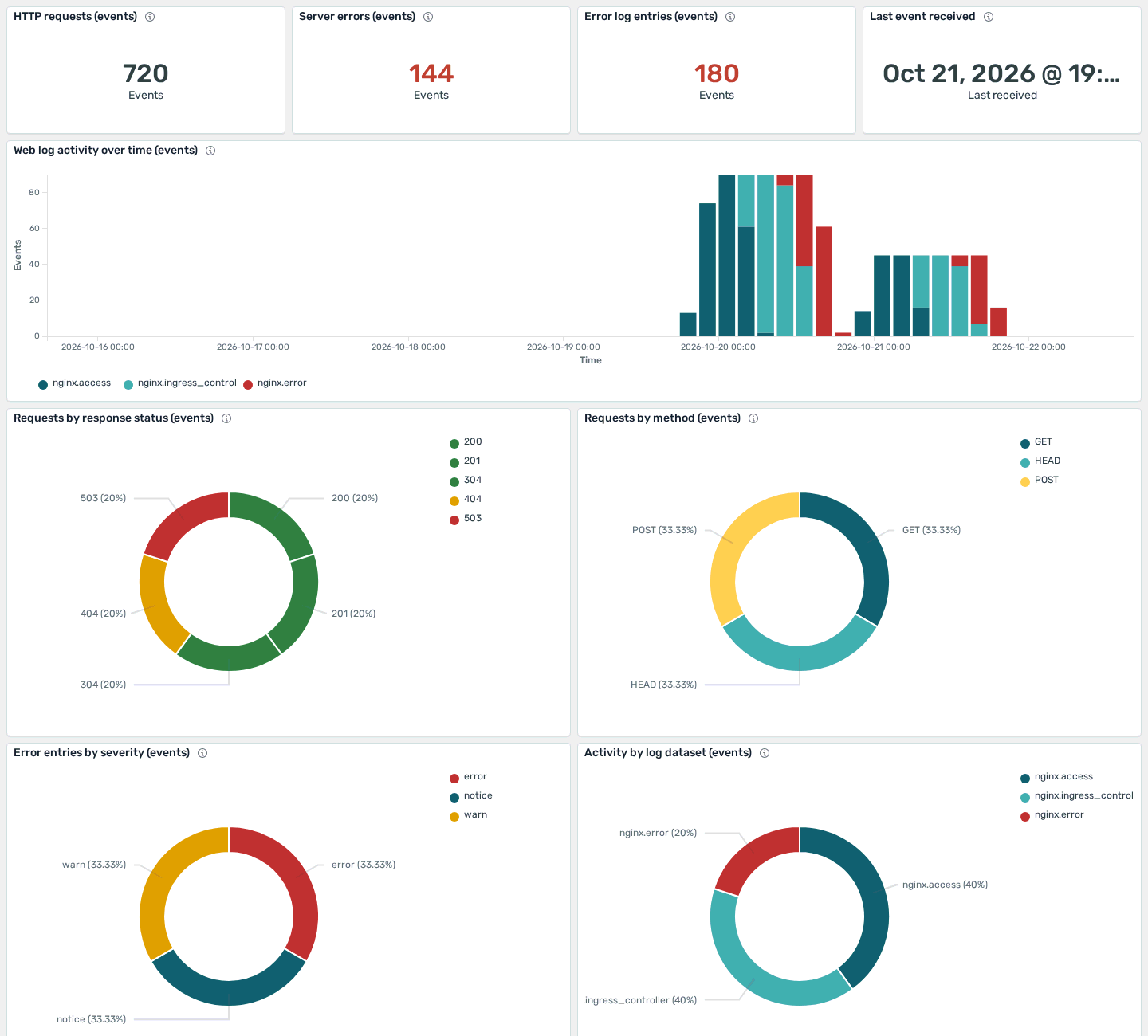
That screenshot uses demo data. Its charts are built around the same fields detection checked. The activity by dataset chart, for instance, splits on event.dataset, which is why a text mapping leaves it blank.
Asking for a source without a pack
Some sources are detectable but don't have a pack yet. They sit under Coming soon with a Notify me button. If yours isn't listed at all, the "Need dashboards for something else?" box takes a short description of the source or tool you send. Both go to the team that builds the packs, so a request tied to data your stack already ships is the useful kind.
If you're still at the stage of choosing a shipper, the onboarding walkthrough shows where each integration's config comes from, and for Kubernetes the Kubernetes integration guide lines up with the Kubernetes container logs and cluster events packs.
The Library installs into the OpenSearch Dashboards that comes with your Logs stack. If you also need a dedicated cluster for search workloads, the Hosted OpenSearch overview explains what's managed for you, and OpenSearch pricing lists the per-node cost.
Unlock complete visibility with hosted ELK, Grafana, and Prometheus-backed Observability