


FortiGate, PAN-OS and Zscaler now each have a six-dashboard pack in the Dashboard Library, live on every Logs stack. If your firewall logs already arrive as parsed module fields, the Library pre-selects the matching pack. If they don't, it won't, even when the firewall has been sending syslog for years.
This post is about that gap: which parsed fields each pack reads, the Filebeat module settings that produce them, and the API checks that tell you whether the dashboards will fill before you install them.
Contents
Three firewall packs, eighteen dashboards
The Dashboard Library on Logs stacks now carries ready-made OpenSearch Dashboards packs for three of the most common perimeter sources: Fortinet FortiGate, Palo Alto Networks PAN-OS and Zscaler (Internet Access and Private Access). Each pack installs six dashboards, and every dashboard follows the same layout: four headline tiles, a full-width trend, two breakdowns and a detail table you can pivot from.
- FortiGate: firewall overview, denied traffic, policy usage, top talkers, security detections (IPS, antivirus, web filter and application control) and investigation.
- PAN-OS: firewall activity, threat detections, denied traffic, rule hits, top sources and investigation.
- Zscaler: ZIA web activity, ZIA blocks and threats, ZIA cloud firewall, ZPA activity, ZPA failed connections and one investigation timeline across all three feeds.
Every board is driven by a base query on a specific index pattern. If your events match that query, the panels fill. If they don't, the dashboards install cleanly and stay empty, which looks like a quiet firewall but almost never is.
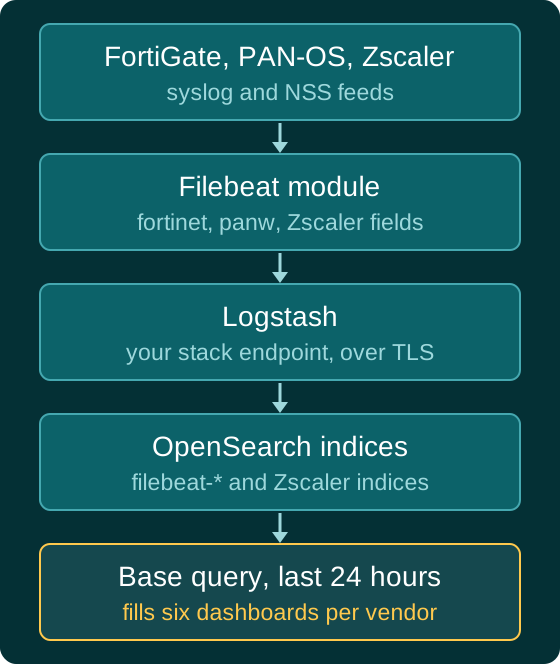
What each pack counts as denied
The three vendors describe a blocked connection differently, and the packs follow each vendor's parsed fields rather than forcing one definition.
| Pack | Index pattern | Base query | Counted as denied or blocked |
|---|---|---|---|
| FortiGate | filebeat-* | event.module:fortinet AND event.dataset:fortinet.firewall | A traffic record (fortinet.firewall.type:traffic) with event.action:deny |
| PAN-OS | filebeat-* | event.module:panw AND event.dataset:panw.panos AND agent.type:filebeat | Records with event.type:denied |
| Zscaler ZIA web | *-* | event.dataset:zscaler_zia.web | Records with event.action:blocked |
| Zscaler ZPA | *-* | event.dataset:zscaler_zpa.user_activity | Records that carry zscaler_zpa.user_activity.internal_reason |
On FortiGate, allowed means accept, close or timeout, which is why the denied traffic board puts an allowed-sessions tile next to the denied one for contrast. Byte totals on the top talkers board come from source.bytes and destination.bytes on closed sessions, so a long-lived session doesn't contribute bytes until it ends. Policies on the policy usage board come from rule.name, and the security detections board reads the UTM records rather than traffic.
PAN-OS threats are records with event.category:intrusion_detection, and the rules board splits activity by rule.name and event.action, where you will see values such as flow_denied and flow_terminated.
FortiGate: use the fortinet module, not a raw syslog input
The most common reason the FortiGate pack stays empty is that the logs reach the stack through a plain UDP input with a custom type field (the setup in our FortiGate integration guide, which is fine for search but not for these dashboards). Your messages are searchable, but nothing sets event.module, event.dataset or fortinet.firewall.type, so the base query matches nothing.
The pack is built for the Filebeat fortinet module and its firewall fileset. Enable it on the machine that receives FortiGate syslog:
filebeat modules enable fortinetThen set the fileset in modules.d/fortinet.yml:
- module: fortinet
  firewall:
    enabled: true
    var.input: udp
    var.syslog_host: 0.0.0.0
    var.syslog_port: 9004
Port 9004 is the fileset's default, so change it if something else on that host already listens there. Keep the output.logstash section from the FortiGate integration guide so events still go to your stack's Logstash endpoint over TLS. Logit.io stacks come with ingest pipelines already configured, so you don't need to run filebeat setup --pipelines yourself. Confirm the module fields arrive with the _count and terms checks further down before you rely on the pack. On the firewall, point syslog at the same port:
config log syslogd setting
    set status enable
    set server "<filebeat-host>"
    set port 9004
    set format default
end
If you already write FortiGate logs to a custom index such as fortigate-*, the Library still notices it. Detection probes *fortigate* so it can tell you FortiGate is present, but the dashboards only read filebeat-*, so the pack shows as waiting for data until module-parsed events land there.
PAN-OS: the panos fileset and the agent filter
The PAN-OS pack reads the Filebeat panw module, panos fileset. Its base query includes agent.type:filebeat, so PAN-OS events parsed by your own Logstash filter won't appear, even with correct ECS field names.
- module: panw
  panos:
    enabled: true
    var.syslog_host: 0.0.0.0
    var.syslog_port: 9001
Port 9001 is the panos fileset's default. As with FortiGate, run the _count check below to confirm the parsed panw.* and event.* fields reach your stack. On the firewall, create a syslog server profile using UDP, BSD format and the port above, then attach a log forwarding profile to the security policies you care about, with logging at session end. The Palo Alto Networks integration guide walks through the console screens. A policy that doesn't forward logs simply never shows up on the rules board, which is worth remembering before you conclude a rule is unused.
Zscaler: match the integration field names
The Zscaler pack is relaxed about where data lands and strict about what it looks like. It reads the stack's catch-all *-* pattern, so it covers logs-zscaler_zia.* and logs-zscaler_zpa.* data streams as well as NSS feeds written to indices such as zialogs-* or zpalogs-*.
The field names follow the Elastic zscaler_zia and zscaler_zpa integrations. If you parse NSS feeds in your own Logstash pipeline, your events need the same names and exactly these event.dataset values, or the boards stay empty:
zscaler_zia.webwithevent.actionofallowedorblocked,user.name,url.domainandzscaler_zia.web.url.category.super.zscaler_zia.firewall, optionally withnetwork.applicationandzscaler_zia.firewall.location_name.zscaler_zpa.user_activitywithzscaler_zpa.user_activity.application, plusconnector.nameandinternal_reasonunder the same prefix.
Two details trip people up. The web action must be lower case: Blocked from a raw NSS feed won't match. And ZPA failures are counted by the presence of internal_reason, because the integration drops empty values. If your pipeline writes an empty string instead of leaving the field out, every ZPA session will look like a failure.
Test the base query before you install
The Library looks back 24 hours when it decides whether to pre-select a pack. You can ask the same question directly with the OpenSearch API by sending each pack's base query to the count endpoint:
GET filebeat-*/_count?q=event.module:fortinet AND event.dataset:fortinet.firewall AND @timestamp:[now-24h TO now]

GET filebeat-*/_count?q=event.module:panw AND event.dataset:panw.panos AND agent.type:filebeat AND @timestamp:[now-24h TO now]

GET *-*/_count?q=event.dataset:zscaler_zia.web AND @timestamp:[now-24h TO now]
A count of zero tells you the fields aren't there, not that the firewall is quiet. To see whether FortiGate events are being split correctly, aggregate on the record type:
GET filebeat-*/_search
{
  "size": 0,
  "query": { "term": { "event.module": "fortinet" } },
  "aggs": { "types": { "terms": { "field": "fortinet.firewall.type" } } }
}
You want buckets for traffic, and utm if security profiles are logging. If the aggregation errors because the field isn't aggregatable, the events landed in an index the default mappings don't cover. On a Logit.io stack, index templates and mappings are managed for you, so you can read them but not change them; route the events into the normal indices or ask support about the mapping. The managed stack limitations page lists what the API lets you change.
The same terms check works for the other packs: aggregate PAN-OS events on event.type and look for denied, or ZIA web events on event.action and look for lower-case allowed and blocked. Once the counts are above zero, open the Library and the matching pack should be ticked on the next scan.
Unlock complete visibility with hosted ELK, Grafana, and Prometheus-backed Observability
Which board to open first
Start on the first board for each vendor: firewall overview for FortiGate, firewall activity for PAN-OS, and ZIA web activity or ZPA activity for Zscaler. Its headline tiles show how much is arriving, the denied, blocked or detected events the pack tracks (on ZPA, users and applications instead) and when the last event arrived, and the trend underneath shows whether a spike is new or part of a daily pattern. When one source dominates, move to denied traffic and top talkers on FortiGate, denied traffic and top sources on PAN-OS, or ZPA failed connections on Zscaler.
For a live incident, start on the investigation board for the vendor in question. Each is one timeline of recent records with the fields you need to pivot, such as source and destination IP, action, and the user or application where the vendor logs one. If you want to see how the Library decides which dashboards to tick for you, our post on Dashboard Library data detection covers that check in detail.