


The ingestion card on your Logit.io dashboard is gaining a 24h / 7d toggle for Logs and Metrics, correct hourly log counts and a dotted line for the hour that is still filling in, as the update rolls out to all stacks. Those three changes decide whether a dip on the chart is a real problem or just the clock.
Short answer: each bar on the Logs ingestion chart is the number of events your Logstash pipeline received in one UTC hour, worked out from the increase in each host's event counter. The last bar is the current hour and only holds the events received so far, so it is drawn dotted and will usually sit below the others. To check a bar, compare it with the Developer API history endpoint and an hourly OpenSearch count, both in UTC, and expect small gaps from late events and dropped events.
Below: how each number is built, a query and API call to run today, a step-by-step check, and why the numbers can disagree.
Contents
- What changed on the ingestion card
- How an hourly log count is built
- Why the last point is dotted
- 24 hours or 7 days
- Checking with the Developer API
- Counting documents per hour in OpenSearch
- Step by step: checking a suspicious hour
- Why the numbers can disagree
- Events on the card, gigabytes on the usage page
- What the chart cannot tell you
- Start with the week view
- FAQ
What changed on the ingestion card
The ingestion card on your dashboard home is being rebuilt with status pills, rate tiles and a full-width history chart with a 24h / 7d toggle for Logs and Metrics. APM keeps its 30-day view of daily span counts. Three fixes matter more than the styling:
- Hourly Logs counts are corrected. The old chart could overstate an hour by roughly sixty times and draw a false drop on the hour in progress.
- The current hour is drawn dotted on Logs as well as Metrics, because it is still filling in.
- Points are labelled in your local time, and the 7d view puts one tick on each local day, including half-hour and 45-minute offsets.
How an hourly log count is built
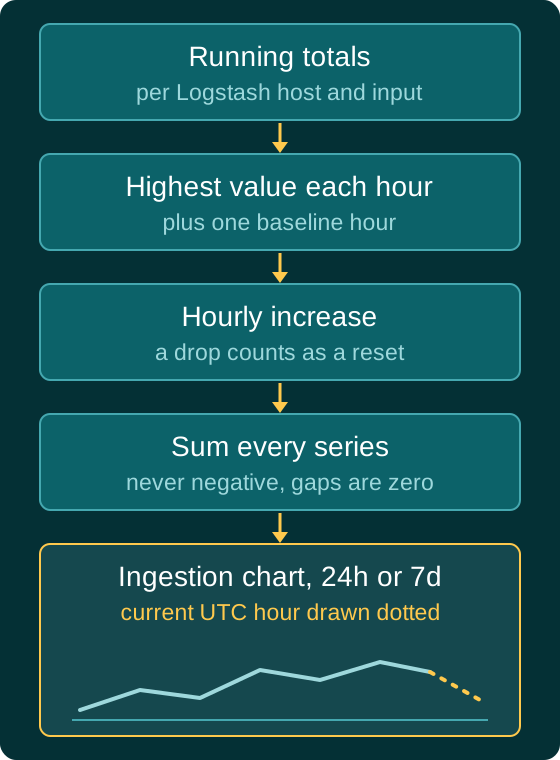
Logstash keeps a running total of events for each input on each host, and Logit.io samples that counter about once a minute, so an hour holds about sixty samples for every host and input pair.
The previous query added every sample in an hour together, which inflated each bar by about sixty times and made the hour in progress, with fewer samples, look like a cliff that never happened.
The new calculation works per series, which means per host and per input:
- Take the highest value of the counter seen in each hour.
- Subtract the previous hour's highest value to get that hour's increase.
- If the value went down, treat it as a counter reset after a Logstash restart and use the new total as the increase.
- Add the hourly increases of every series together.
The query reads one extra hour before the range so the first bar has a baseline. The result is never negative, and an hour with nothing received shows as zero.
A worked example of the hourly maths
Say your stack has two Logstash hosts, A and B, each with one input (the stack's Logstash pipeline input). At the end of 13:00 UTC the highest counter values were 1,200,000 on A and 800,000 on B. During 14:00 UTC the highest values were 1,236,000 on A and 824,500 on B. The 14:00 bar is (1,236,000 minus 1,200,000) plus (824,500 minus 800,000), which is 36,000 plus 24,500, or 60,500 events.
Now say host B restarts at 15:40 and its counter starts again from zero, reaching 9,000 by the end of the hour. The 15:00 bar keeps B's pre-restart maximum and misses those 9,000 events. In 16:00, B's highest value is lower than in 15:00, so the query treats it as a reset and counts the whole new total as 16:00's increase, which moves the 9,000 events into the 16:00 bar. The chart shows a dip at 15:00 and a matching bump at 16:00, and the two-hour total is right. A dip followed by a matching bump is therefore a likely restart, not lost data.
Why the last point is dotted
The current UTC hour is marked as partial and drawn as a dotted segment. Read it as "so far this hour", not as a rate. At 14:20 the 14:00 bar holds about twenty minutes of events, so it will sit well below 13:00 even when traffic is perfectly steady.
Metrics behaves slightly differently. Each Metrics point is an hourly snapshot of a rate, such as active metrics and metrics per second, rather than a sum of everything sent in the hour. The snapshot is written once an hour, so the current hour's point only appears a short while after the hour starts. Until it does, the last solid point is the previous hour. The Metrics summary tiles, average per second and the high and low, always cover the last 24 hours, whichever range the chart shows.
24 hours or 7 days
Use 24h to ask "is anything arriving, and is this hour normal?". Use 7d to see weekday peaks, overnight troughs and daily batch jobs. Patterns worth recognising:
- A step that stays up usually means a new source or a more verbose log level was deployed.
- A single tall bar often lines up with a backlog being flushed after a network outage or an agent restart, rather than a real burst of activity.
- A flat line at zero on a source that should be sending is a shipping problem, not a quiet system.
Checking with the Developer API
The same hourly series is in the Developer API, using your Dashboard API key in the x-api-key header:
curl -s -H "x-api-key: $LOGIT_DASHBOARD_API_KEY" \
  https://dashboard.logit.io/api/stacks/$LOGS_STACK_ID/ingestion/history
The response lists one point per hour for the last 24 hours, oldest first:
{
  "points": [
    { "label": "58,214", "value": 58214, "date": "2026-10-30T11:00:00Z" },
    { "label": "61,902", "value": 61902, "date": "2026-10-30T12:00:00Z" },
    { "label": "60,500", "value": 60500, "date": "2026-10-30T13:00:00Z" },
    { "label": "19,876", "value": 19876, "date": "2026-10-30T14:00:00Z" }
  ]
}
Each point has three fields. value is the number of events for the hour, and is never negative. label is the same number as display text, rounded and shortened for large values (for example 124.5k), so always use value in scripts. date is the start of the hour, and is moving to ISO-8601 UTC as the update rolls out, for example 2026-10-30T14:00:00Z, instead of the older human-readable string. If you have a script that parsed the old format, update it to read both while the change rolls out.
The API does not mark which point is incomplete. The last point is the current UTC hour, so called at 14:20 UTC, the 14:00 point holds about twenty minutes of events. Treat it as "so far this hour", and drop it before you work out averages or alert thresholds. With jq:
curl -s -H "x-api-key: $LOGIT_DASHBOARD_API_KEY" \
  https://dashboard.logit.io/api/stacks/$LOGS_STACK_ID/ingestion/history \
  | jq --arg now "$(date -u +%Y-%m-%dT%H:00:00Z)" \
    '[.points[] | select(.date != $now)] | (map(.value) | add / length)'
Two other endpoints answer "is data arriving right now, and is it on time?". /ingestion/events returns a receiving indicator, which is true when the average rate is above zero, plus the last, average and highest events per minute as display text. /ingestion/latency returns a lag level of Low, Medium or High, where High means high lag, plus the current lag. The ingestion statistics API guide lists every endpoint for Logs, Metrics and APM stacks.
Counting documents per hour in OpenSearch
The chart counts events entering the pipeline. To see what was indexed, run this in Dev Tools in OpenSearch Dashboards, swapping logstash-* for your index pattern:
GET logstash-*/_search
{
  "size": 0,
  "query": {
    "range": {
      "@timestamp": { "gte": "now-24h/h", "lt": "now/h", "time_zone": "+00:00" }
    }
  },
  "aggs": {
    "per_hour": {
      "date_histogram": {
        "field": "@timestamp",
        "fixed_interval": "1h",
        "time_zone": "+00:00",
        "min_doc_count": 0
      }
    }
  }
}
Three settings make this line up with the chart. time_zone is set to UTC so the buckets start on the same hours as the API points. lt: now/h leaves out the current hour, so you compare complete hours only. min_doc_count: 0 keeps empty hours in the result, so a gap shows as zero instead of disappearing. Each bucket comes back with a key_as_string such as 2026-10-30T13:00:00.000Z and a doc_count, which you can match to the API date.
Step by step: checking a suspicious hour
- Find the hour in UTC. The chart uses local time, so convert first.
- Check it is not the current hour. If it is the dotted point, wait for the hour to finish.
- Pull the API history. Note the
valuefor that hour and the hours either side. - Run the hourly count. Find the OpenSearch bucket with the same UTC start.
- Compare the shape, not just the number. If both sources dip in the same hour, fewer events were sent. If only the indexed count dips, events reached the pipeline but did not become documents.
- Look for a restart. A low bar followed by a matching high bar the next hour, with the indexed count normal across both, points to a Logstash restart mid-hour rather than lost data.
- Check rejected events. If the indexed count stays well below the chart for several hours, enable the Logstash dead letter queue and look in
dlq-*for events rejected with a reason such as a mapping conflict. - Check it is arriving now. Call
/ingestion/eventsand/ingestion/latency. A receiving indicator of false, or a high lag, means the problem is still live.
Why the numbers can disagree
- Time zone and UTC hour mismatches. The API and the hourly maths use UTC. The chart labels and OpenSearch Dashboards usually show your browser's time zone, and a
date_histogramwithouttime_zonemay not match the hours you expect. In zones with half-hour or 45-minute offsets, a local "16:00" label sits part-way through a UTC hour. Set every comparison to UTC; the time zone guide shows how to change the display setting. - The partial hour. Never compare the current hour with a full one.
- Late-arriving events. The histogram buckets documents by their own
@timestamp, not by when they arrived. A backlog shipped after an outage counts in the arrival hour on the chart but in the original hours in OpenSearch, so one source shows a spike while the other shows a gap being filled in. - Events dropped or rejected. Events that a filter drops on purpose, or that fail to index, are counted on the chart but never become documents.
- Rounding. The
labelfield and the per-minute figures from/ingestion/eventsare rounded display text. Comparevaluenumbers. The counter is sampled about once a minute, but because each hour is the difference between counter totals, sampling does not drop events. At a restart, events received after it move into the next hour's bar rather than being lost; only events received between the last sample and the restart can go uncounted.
Events on the card, gigabytes on the usage page
The ingestion card counts events. Your plan is measured in storage, and that is what the usage statistics page shows (use the card's own View statistics link, or choose View Stack Settings, then Usage Statistics). The page is also being redesigned as part of the same update: today's figures appear as tiles, the historic usage chart keeps your plan limit line visible, the count chart shows the number of events sent each day, and the usage table has a plan-used bar and a download.
The two will not move in lockstep. Logs Sent is the maximum disk used by your primary indices each UTC day, in GB rather than the GiB _cat/indices uses, and today's figure can change as indices compress. A day with fewer, larger events can use more of your plan. How Logit.io calculates usage covers the details.
If a 7d trend shows volume creeping up, act early. Over-usage protection lets you go up to 100% over your plan on three days in a rolling 30 before the plan resizes, as described in exceeding log volume limits. The guide to reducing your log volumes shows how to drop fields you never search.
What the chart cannot tell you
- It counts per stack, not per source; use a
termsaggregation in OpenSearch to find which host changed. - A mid-hour Logstash restart shows as a dip and a matching bump; the split between the hours is not corrected afterwards.
- The API history covers 24 hours; store values yourself for a longer record.
- Metrics points are hourly snapshots of a rate, so they cannot be added up into a total the way Logs bars can.
- It cannot show events that never left your servers.
Unlock complete visibility with hosted ELK, Grafana, and Prometheus-backed Observability
Start with the week view
Switch your Logs stack to 7d, look for the steps and spikes above, and compare a suspicious day with the usage statistics page. If you are choosing where to run OpenSearch, Hosted OpenSearch on Logit.io brings these ingestion views to every Logs and Hosted OpenSearch stack as the update rolls out, and OpenSearch pricing sets out the plans.
FAQ
Why is the last bar on my ingestion chart always lower?
It is the current UTC hour and only holds the events received so far. At 20 minutes past the hour it holds about a third of a normal hour. It is drawn dotted for that reason.
Why does the API count differ from my OpenSearch hourly count?
The API counts events as they enter the pipeline, and OpenSearch counts indexed documents by their own timestamp. Late, dropped and rejected events make them differ. Check both are in UTC first.
Does the Developer API tell me which hour is partial?
No. Each point has only label, value and date. Treat the point whose date matches the current UTC hour as partial.
Why did older charts show much higher hourly numbers?
The old query added every one-minute counter sample in an hour, which inflated each bar by about sixty times. The new calculation uses the increase in each counter, so the numbers are corrected as the update rolls out.
Does the event count decide my bill?
No. Your Logs plan is measured in daily storage, shown on the usage statistics page in GB. The event count is a guide to trends, not to plan usage.
What does a dip followed by a bump mean?
Usually a Logstash restart: post-restart events were counted in the next hour. If the OpenSearch count is normal across both UTC hours, no data was lost.