
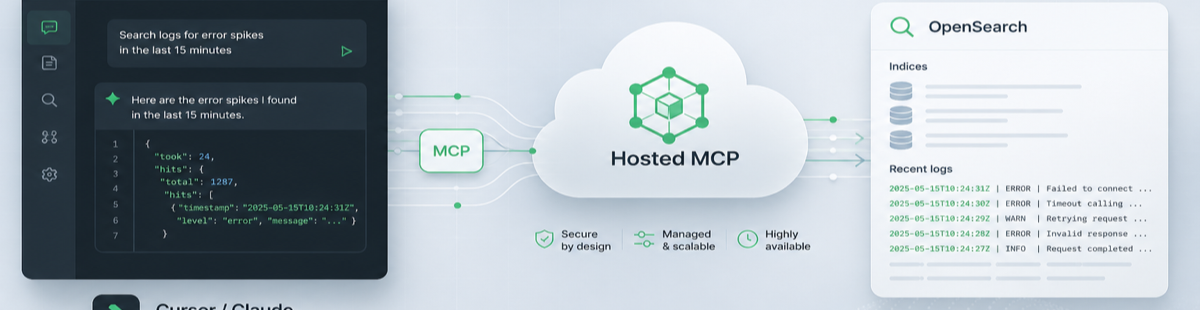

AI assistants are useful for drafting code and exploring APIs — but investigating live log and search data usually means leaving your editor, opening Dashboards, and rebuilding the same queries by hand. Hosted OpenSearch MCP closes that gap: Logit.io now runs a managed, read-only OpenSearch MCP server for your stacks so tools like Cursor and Claude Desktop can query your data over HTTPS — without you operating a local MCP process.
Incident questions can stay next to the code you are changing: ask what failed after a deploy, which service is emitting errors, or how a latency spike lines up with a log pattern — using the same OpenSearch indexes your team already trusts.
Contents
What is Hosted OpenSearch MCP?
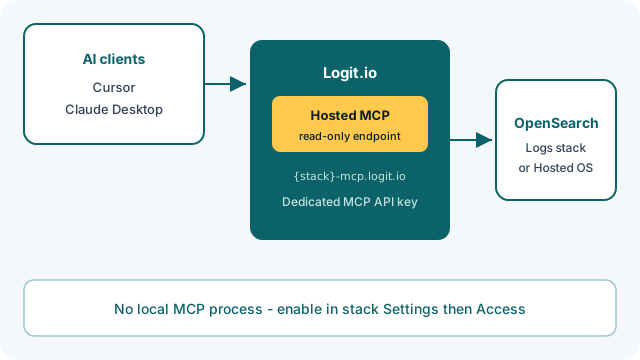
Model Context Protocol (MCP) lets AI clients call tools and data sources through a standard interface. Logit.io hosts that server for each enabled Logs or OpenSearch stack and exposes it at {stack-id}-mcp.logit.io.
From the dashboard you get a hosted MCP URL, a dedicated MCP username and API key, and copy-paste config for Cursor or Claude Desktop. Enablement and key rotation live under stack Settings — the same place you already manage endpoints.
Why hosted instead of local?
Self-hosting an OpenSearch MCP server means another process to run, credentials to wire, and upgrades to track. Hosted MCP is designed for teams that want AI-assisted investigation without that ops tax:
- No local MCP process — enable per stack in the dashboard; we provision the public endpoint.
- Read-only by design — investigation without write tools exposed through MCP.
- Separate credentials — dedicated MCP API key, distinct from your OpenSearch
-esHTTP API key. - Copy-paste client config — ready for Cursor MCP settings and Claude Desktop.
Hosted MCP is available on Log Management and Custom plans. Start with a 14-day free trial to explore the platform, then enable MCP when you are on a supported plan.
Unlock complete visibility with hosted ELK, Grafana, and Prometheus-backed Observability
Enable MCP on a stack
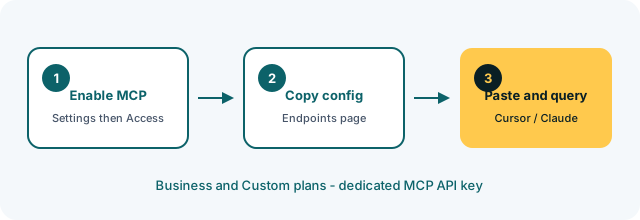
You need a Log Management or Custom plan, a Logs or OpenSearch stack, and permission to change stack access. Full steps are in the Hosted OpenSearch MCP docs. The short version:
- Open the stack Settings page (Overview).
- Under Access, find OpenSearch MCP.
- Select Enable.
Logit.io provisions {stack-id}-mcp.logit.io and generates a dedicated MCP API key. Disable from the same Access card to remove the public MCP route. Enable MCP separately on each stack you want AI clients to reach.
Connect Cursor or Claude
After enablement, open Settings → Endpoints. The OpenSearch MCP (read-only) section shows the MCP URL, username, API key, and an example JSON config.
Paste that config into Cursor’s MCP settings (or Claude Desktop’s MCP server settings). The shape looks like this — replace placeholders with the values from Endpoints:
{
  "mcpServers": {
    "logit-opensearch": {
      "url": "https://{stack-id}-mcp.logit.io",
      "headers": {
        "Authorization": "Basic {base64-encoded-credentials}"
      }
    }
  }
}
You can rotate the MCP API key on the Endpoints page; the previous key stops working after rotation. Do not reuse your OpenSearch -es stack API key for MCP.
What you can ask
Once the client lists Logit.io MCP tools, keep prompts grounded in operational questions — recent error spikes for a service, unusual status codes on an API route, or log lines tied to a deploy window. The value is faster investigation inside the editor. Because MCP is read-only, it suits on-call workflows where you want AI help without granting write access through the assistant.
What MCP is not
Hosted MCP is for AI-assisted read access. It is not a substitute for:
- OpenSearch REST API — programmatic search, indexing, and write automation with your stack key.
- OpenSearch API user credentials (RBAC) — role-scoped human or CI access on Business/Custom.
- Developer API — control-plane automation for stacks, Logstash pipelines, and alerting.
Write tools are intentionally unavailable on hosted MCP.
Troubleshooting
Most connection issues come down to credentials, enablement, or client support for remote HTTPS MCP:
- 401 Unauthorized — confirm you are using the MCP username and MCP API key from Endpoints (not the
-eskey), and that the key was not rotated since you copied it. - 404 / connection failed — confirm MCP is enabled on the stack and the URL matches exactly; DNS can take a short time after enable.
- Client cannot list tools — confirm the client supports remote MCP over HTTPS with custom headers, then re-paste the dashboard config.
- Expected write tool missing — by design; use the REST API or Developer API for writes and control-plane changes.
See the MCP docs troubleshooting section for more detail.
Get started
Product overview: Hosted OpenSearch MCP. Setup guide: Hosted OpenSearch MCP docs. If you already run Hosted OpenSearch on a Log Management or Custom plan, enable MCP on a stack and try asking Cursor about a recent error pattern or latency spike in your indexes.